
FutureFunds
UX Critique, Redesign & Usability Testing Plan — Desktop & Mobile

Overview
FutureFunds is a hypothetical financial-planning client built for a clear audience: young professionals just starting to earn real money, who need help with debt repayment, investing, and retirement planning. The brief was framed as a developmental exercise — an intern’s first pass at the landing page had run into real usability problems, and the job was to diagnose exactly what was going wrong, then deliver a corrected, production-ready version for desktop and mobile, complete with a working financial calculator and appointment scheduler. The full project, from critique through a usability testing plan, took three weeks in Figma.
The Starting Point — A UX Critique
Before redesigning anything, the first step was a structured heuristic critique of the original wireframes — naming exactly what was breaking down and why, across six categories grouped into two sets of three.

User-centricity, consistency & hierarchy
- User-centricity — the designs didn’t address the target audience’s needs or anticipate real user behavior, creating friction from the first screen
- Consistency — mismatched components, scattered type sizes, and unpredictable UI patterns broke the visual flow
- Hierarchy — the appointment scheduler sat at the very top of the page, before visitors even knew what the company offered
Context, efficiency & cognitive load
- Context — no cross-device responsiveness, which made the site effectively unusable on mobile
- Efficiency — unlabeled buttons, ambiguous arrow icons, and roundabout navigation slowed every task down
- Cognitive load — an overloaded consultation form demanded heavy personal information upfront, adding unnecessary stress
The Redesign — Desktop
The rebuilt desktop layout reorders the page around how a first-time visitor actually thinks: understand what the company does, see the services, try the interactive tool, then trust it enough to book a consultation. That new order — Hero → Services → Interactive Financial Visualizer/Calculator → Testimonials → Blog → Scheduler — answers the hierarchy problem from the critique directly.

Key branding & UI enhancements
- Applied the official brand palette: #23C686 green for primary elements and actions, #333333 charcoal for layout structure and text
- A clean, modern value statement placed directly in the hero instead of buried further down the page
- Scheduler moved to the end of the page, so visitors are asked to book only after they understand and trust the service
The Redesign — Mobile
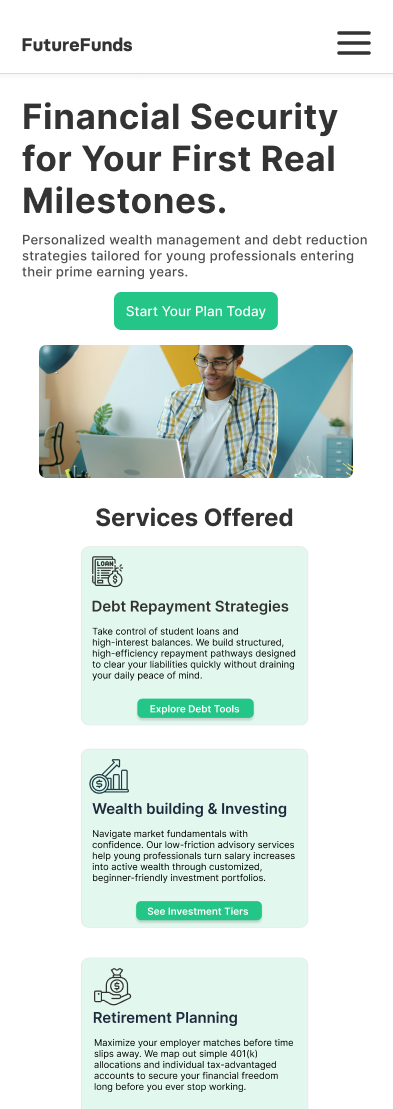
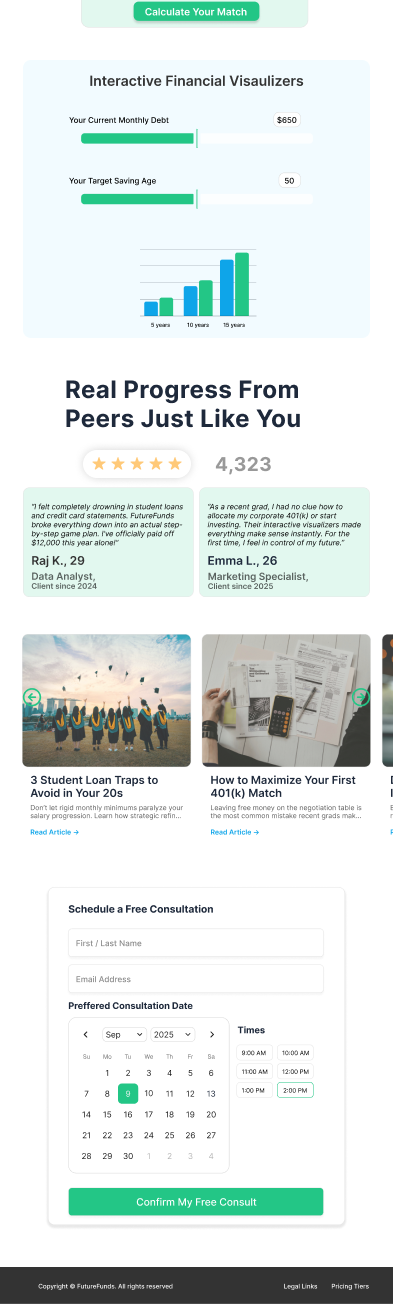
The mobile version isn’t a shrunken desktop page — it’s rebuilt around what a phone actually needs: one column, thumb-sized targets, and a hidden secondary navigation. That directly answers the original context problem, a site that broke entirely on small screens.
Key enhancements
- Multi-column layouts condensed into a single, unified vertical stack
- A hamburger navigation toggle hides secondary links and frees up small-screen space
- High-contrast #23C686 green primary actions, sized for thumb interaction
- Proportionately scaled typography that keeps strong readability against a clean backdrop
Cross-Device UX Standards
Designing the same page twice — once for a mouse, once for a thumb — meant being explicit about how the two contexts actually differ, rather than just scaling one layout down for the other.
Accessibility Standards Checklist
Accessibility was treated as a checklist to build against, not an afterthought to test for once the design looked finished.
Checklist
- Buttons & links — descriptive text labels replace blank or icon-only buttons
- Typography — a clear semantic scale (H1, H2, H3) for screen-reader parsing, with body copy at 16pt or larger
- Color & contrast — #333333 charcoal on light backgrounds tested against WCAG AA; color is never the only signal of a system state
- Forms — persistent input labels replace temporary placeholder text, so fields stay clear after a user starts typing
Why Figma
Figma was the right tool for this stage for three reasons: it supports high-fidelity realism for testing exactly how a branded component like the green primary CTA should behave; its component and instance system keeps elements identical across the desktop and mobile canvases without rebuilding them by hand; and its live, shared workspace makes it easy to pass critique back and forth between a senior reviewer and a junior designer.
Usability Testing Plan
The redesign wasn’t the end of the process — it shipped with a full plan for testing it against real users before calling it finished.
Scope & goals
- Testing scope: header navigation, landing page readability, ease of using the financial visualizer, and appointment form submission speed
- Participants: 5–9 targeted users aged 25–35, matching the core young-professional persona
- Staff & tools: one primary moderator, using remote testing software with video and screen capture
- Primary goals: quantify time-on-task, measure completion rates for key paths, and establish user trust ratings
Script outline
- Phase 1 — Welcome & setup: frame the session as testing the layout, not the participant, and ask them to think out loud
- Phase 2 — Task-based prompts: e.g. “Walk me through how you’d locate and use the financial visualizer to test different savings rates”
- Phase 3 — Debrief: e.g. “What was the easiest part of this layout? Did you feel comfortable sharing information on this page?”
Bias mitigation
- Iterative optimization — feedback loops turn raw usability metrics directly into structured layout updates
- Analysis bias — behavior is scored against standardized rubrics and cross-checked with recorded screen sessions
- Response bias — neutral, open-ended prompts (“walk me through your experience with that tool”) instead of leading ones (“was that green button easy to see?”)
Next Steps
Immediate action items
- Deploy the finalized usability test using the high-fidelity, branded Figma mockups
- Sort participant feedback systematically and adjust layout decisions to match
A user-centered mindset going forward
- Run user interview research before drafting early layout structures
- Build in user-testing touchpoints at every project milestone
- Run ongoing compliance checks against the brand guide and the accessibility checklist
Reflection
What set this project apart from a typical redesign was starting with a formal critique instead of jumping straight to visuals. Naming exactly which heuristics were failing — hierarchy, cognitive load, consistency — before touching Figma made every later decision traceable back to a specific problem, rather than a vague sense that the original “looked bad.” Writing the usability testing plan alongside the redesign also kept the project honest: the work isn’t done because it looks polished, it’s done once it’s been tested against the users it was built for.